 Pektrix
Take a restaurant table request from chat to approval
Let diners choose a time and party size, then give the restaurant team the final approval.
On this page
Prepare the restaurant schedule
- Use a test workspace with Workflows and Bookings & services enabled. As its manager, open Workflows, select New workflow, choose Restaurant reservations, and save the draft.
- Expand the Restaurant reservations setup checklist. If the workspace has no booking settings, select Prepare settings draft to get a Table reservation service and a Dining room resource. Use Booking availability to open the booking settings.
- Choose Configure bookings. Under Workflow, enable bookings, collect a date and time, enter the restaurant’s time zone, and choose Tenant approves each request. Check the seat capacity under Resources. Under Services, assign the dining room to Table reservation and select Ask how many people / places.
- Set the restaurant’s hours under Availability. Under Preview & versions, select the service and a future date during opening hours, then choose Check times. Once the offered times match your schedule, select Save and publish.
Connect the service to the conversation
- Return to Workflows and reopen the saved Restaurant reservations draft. Select the Book a service step and choose Table reservation in the Service list.
- Choose Test and enter “Reserve a table”. Follow the preview to check the wording customers will see. To run the journey on the website, publish it, choose Activate workflow, and select Workflows in the widget v2 mode selector. The workspace uses one active workflow at a time.
Verify the visitor request and staff approval
- Start a fresh conversation in the Modern widget in your test workspace. Send “Reserve a table”, supply a party size, select an offered time, fill in the requested contact details, and confirm the summary. Keep the request reference.
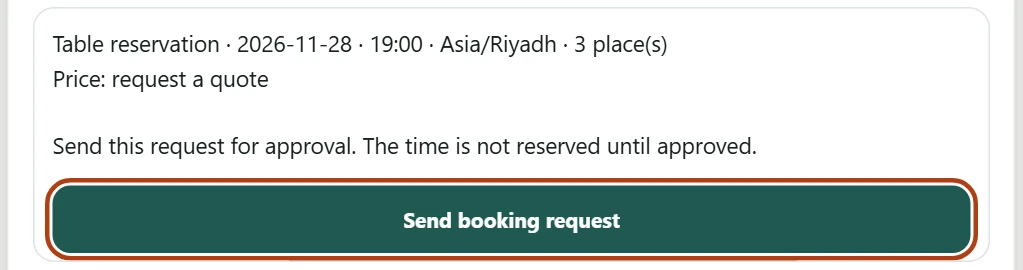
Check the time zone and number of places, then choose Send booking request. For a restaurant that reviews each request, staff approval reserves the time. - Open Bookings & services, choose Booking inbox, and filter by Pending approval. Expand Customer details and reference and match the reference, local time and number of places.

Choose Pending approval to open the requests awaiting a decision. Match the visitor’s reference before approving a booking. - Select Approve when the restaurant can accept the request. Capacity is checked again. Open the Confirmed filter and inspect Booking history to verify the decision.