 Pektrix
Build and publish a widget conversation workflow
Guide a customer through questions, branches and handoffs, then trace the journey in widget v2.
On this page
Design and simulate a journey
- Open Workspace → Workflows and choose New workflow. Select a template or Start from scratch. Give the workflow a name and enter one customer start phrase per line.
- Select a step in the outline to edit its customer message. For a question, give the answer a short name, such as service. Set What happens next on each path and connect all branches. Booking steps need a published service and action steps need an assigned action.
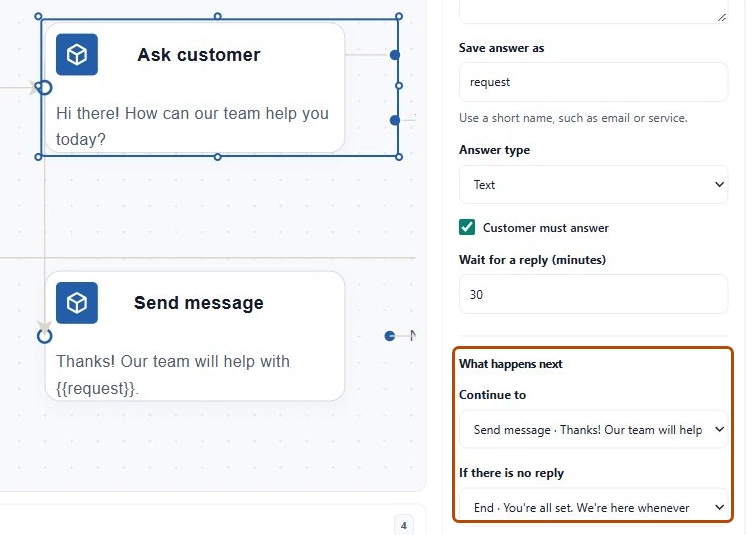
Set where the journey goes after a reply and where it goes if the customer leaves the question unanswered. - Choose Save draft, then Test. Enter a start phrase and follow each branch in the test chat. Restart test to try a different answer. The preview simulates operations without placing bookings or calling business actions.
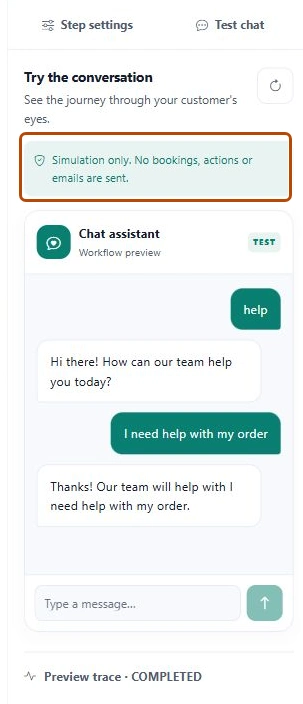
Send a start phrase, reply to the question, and compare the next message with the branch you configured.
Go live and check a run
- Resolve any setup checks, choose Publish, then Activate workflow. Under Widget conversation mode, select Workflows. New conversations can now start the active journey.
- Start a new widget v2 conversation and send a configured start phrase. Open Run history and select Refresh. Compare the pinned version, current node and recorded events with the path you expected.
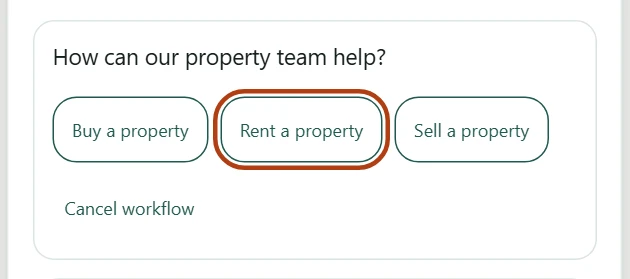
Choose Rent a property and check that the next question asks about the area where the visitor wants to rent. - If no run appears, check the active workflow, widget v2 mode, start phrase and whether you started a new conversation. Run history shows the latest run for each of the 100 most recent conversations.