 Pektrix
Publish services, capacity and booking times
Offer appointments, reservations or quote enquiries, then verify which times customers can request.
On this page
Prepare the booking settings
- As the workspace owner, open Commerce → Bookings & services → Configure bookings. Under Workflow, choose the template, enter the business time zone and currency, and select Enable bookings. Choose whether to collect a date and time or accept quote enquiries.
- Choose whether the team approves requests or available times are confirmed automatically. Set minimum notice, booking horizon and start interval. Add the phrases customers use to request a booking.
- Under Resources, add the people, rooms or tables that limit capacity. For example, a single treatment room shared by two services should be the same resource on both. Under Services, add a name, duration and available resources. Enter a price or leave it blank for a quote.
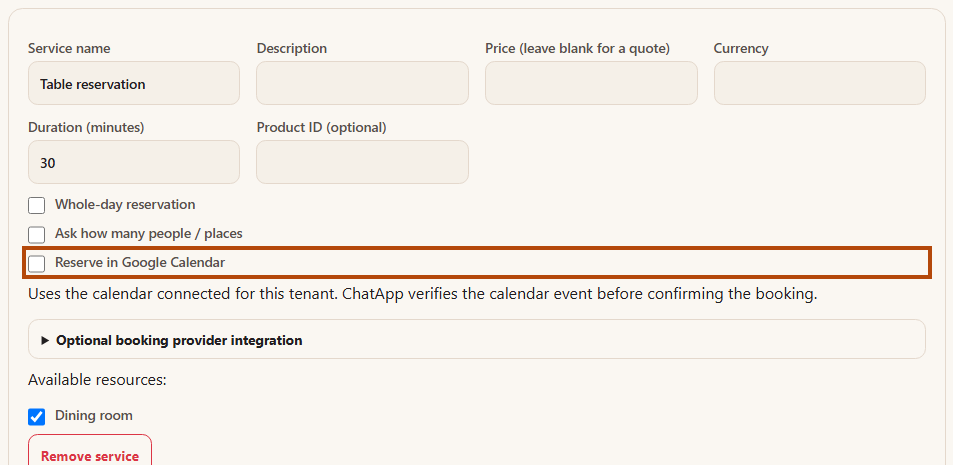
Check the service and its resource. If this scheduled service uses the workspace’s connected Google Calendar, select Reserve in Google Calendar. - Under Availability, add weekly windows and any closed dates or exceptions. Under Customer fields, add the questions needed to fulfill the request. Choose Save draft.
Check and publish
- Open Preview & versions, choose the service and a date, and select Check times. Test an open day and a closed day. This preview checks the draft without reserving a slot.
- Choose Save and publish when the times and customer questions are correct. If a service offers no times, check notice, booking horizon, duration, availability exceptions and resource capacity.