 Pektrix
Review and sync a lead to HubSpot
Map a published form to HubSpot fields and approve the exact contact details to send.
On this page
Connect the portal
- Open Integrations → HubSpot contacts as the owner. Enter the Portal ID and HubSpot Service Key. Use Open widget editor to find the published form card ID and exact field keys.
- Under Published form mapping, enter the card ID and email field key. Optionally map first name, last name and phone. Choose Verify and connect and check the connected portal ID.
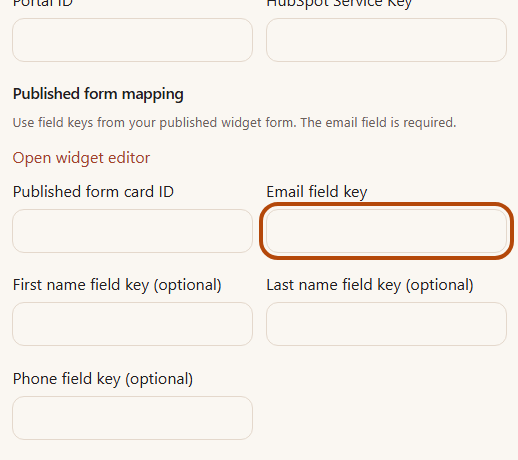
Enter the exact email field key from the published widget form. Copy the form’s card ID into the field beside it.
Approve a contact
- Under Review a collected lead select a recent submission. Choose Preview fields and compare the email and mapped values with the original submission.
- Choose Approve and queue sync to send the reviewed values. Check Recent sync activity for the outcome and HubSpot contact. If the result is unconfirmed, use Check the same sync request before queuing more work.