 Pektrix
Send human handoff notices to Slack
Direct new handoff notices to the right Slack channel and follow the private inbox link.
On this page
Connect a Slack channel
- Invite your Slack app to the destination channel. In Pektrix, open Integrations → Slack handoffs as the owner.
- Copy Slack workspace ID and Slack channel ID from the intended Slack workspace and channel. Enter the bot token for the Slack app you invited.
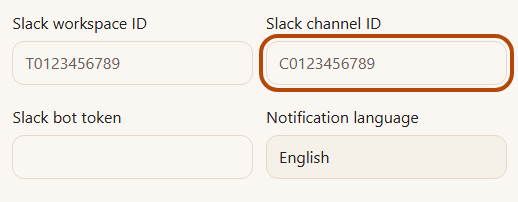
Enter the channel ID for the Slack channel where you invited the app. Check the workspace ID alongside it. - Choose the notification language for the team that handles handoffs. Select Verify and enable Slack handoffs and check that the saved workspace and channel match.
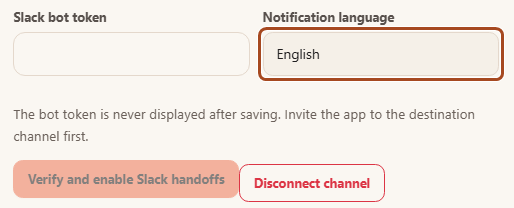
Choose the language the receiving team uses for handoff notices. Invite the app to its Slack channel before verification.
Verify a handoff
- Trigger a handoff in a test conversation after connecting. Refresh Recent handoff notices, then check the destination channel for the notice.
- Use the link from the notice while signed in to a Pektrix account with workspace access. If the delivery outcome is uncertain, check Slack for an existing notice before attempting any follow-up.