 Pektrix
Verify a signed-in shopper in the widget
Connect the website widget to a storefront that can prove the shopper has signed in.
On this page
Prepare the storefront
- Ask the storefront developer to configure a server-side signer that authenticates the current shopper and provides short-lived proofs for the v2 widget’s signedVisitorToken callback.
- Have the developer supply the storefront’s exact HTTPS origin, HTTPS issuer, key ID and P-256 public key in PEM format. The private signing key stays on the storefront server.
Enable and check verification
- Open Integrations → Verified store identity. Enter the origin without a path or trailing slash, the matching issuer, public key ID and public key. Select Enable store identity verification and choose Save host identity settings.
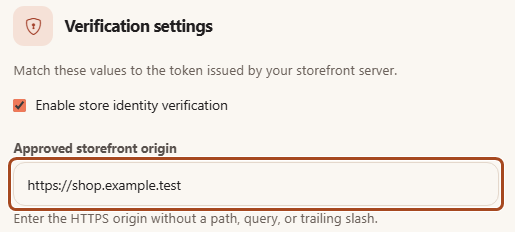
Use the exact HTTPS origin where shoppers sign in. Leave out page paths, query strings and the trailing slash. - Check Saved configuration. Use a test shopper signed in on that exact storefront and complete verification in the widget. After key rotation, start a fresh verification because saving a revision invalidates outstanding challenges. Order or payment access requires separate authorization.