 Pektrix
Search messages and save an inbox view
Return to queues such as unassigned conversations or chats with a recorded service breach.
On this page
Find an earlier message
- In Inbox, set the channel, status and date filters. When Search conversation messages is available, enter distinctive words from the conversation and choose Search.
- Open the matching conversation. If you expect a conversation but see no matches, widen the date range or clear the channel filter and search again.
Keep a frequently used queue
- Under Saved inbox views choose New saved view. Give the view a name such as “Unassigned web chats”. For that example, filter the inbox to web conversations, choose Unassigned in the view’s Assignment field and select Use current inbox filters.
- Leave the view personal or select Share with this workspace so current members can see it. Save view, then Apply view to confirm the returned queue. The owner can enable saved views and message search under the reviewed workspace preferences.
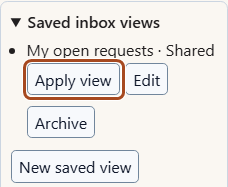
Select Apply view under the queue you want. The Shared label means workspace members can use it.