 Pektrix
Use saved replies and private Copilot suggestions
Prepare reusable answers and review suggested wording before sending it to a customer.
On this page
Create and insert a saved reply
- Open Saved replies. Choose New saved reply, or New Response in the earlier editor. Give the reply a title and content, for example “Collection hours” and your verified pickup schedule. Set Automatic use to Manual only to have an operator choose it.
- Save the reply. In an inbox conversation, open Saved replies, select the entry and review the text. In the reviewed composer, choose Insert into draft. Fill missing conversation values before inserting a reply that uses variables.
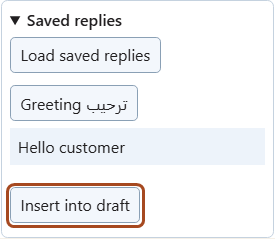
Read the preview, then select Insert into draft to move the wording into your conversation reply. - Check the recipient and final wording, then send the draft using the conversation’s reply controls.
Use Copilot in a reviewed workspace
- The owner can allow private Copilot suggestions in Operator workspace setup when reviewed team controls are available. Select a conversation and choose an output language in Copilot.
- Use Suggest a reply, Summarize conversation or Rewrite reply tone. For a suitable suggestion, choose Insert into reply. If the draft already contains text, review the offered replacement before accepting it. Read the finished draft, then use the normal reply controls to send.