 Pektrix
Reply to a customer in the inbox
Find a chat, take over from the bot and see the reply in the conversation.
On this page
Find the conversation
- Open Workspace → Inbox. Select the channel, status and date range. Open a conversation and check the name, channel and conversation number above the messages.
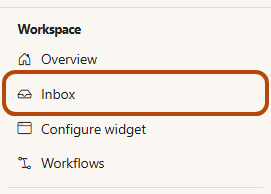
Choose Inbox in the active bot’s Workspace group. - For a first test, open the widget as a visitor and send “Can I collect my order on Friday?” Leave that tab open. In the operator inbox, open the thread containing the same message.
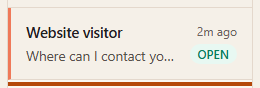
Use the visitor name and the start of the message to locate the test conversation, then open the thread to read it in full.
Take over and finish
- If the header says Bot active, choose Reply as agent. In workspaces with reviewed team controls, open Conversation controls, choose Bot replies and clear Enable bot replies, review the latest state and confirm the change.
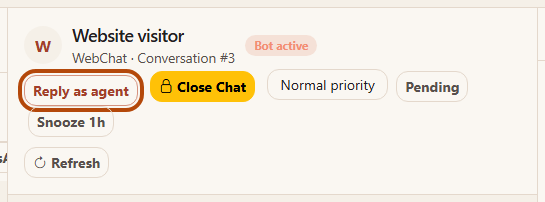
Check the visitor and channel, then choose Reply as agent when you are ready to take over the conversation. - Write your reply and select Send. If you see Review and reply, check the latest messages, acknowledge the review and select Send reply. Confirm the reply appears in the thread. If the result is unconfirmed, use Check saved reply before retrying.
- After resolving the request, close the chat or resume the bot using the header or Conversation controls. A closed conversation must be reopened before you can reply again.