 Pektrix
Let the phone assistant answer missed calls
Choose a phone route, set a voice and prove the number works before letting AI take calls.
On this page
Choose how calls reach Pektrix
- Open Channels → Phone Assistant. If Choose a number is empty, ask your Pektrix administrator to assign a number to this workspace.
- Choose Keep my existing business number to forward unanswered calls. Enter your business number with its country code, select the forwarding destination and set up no-answer forwarding with your carrier. The carrier sets the ring time for this route.
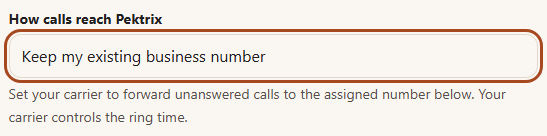
For this route, customers continue calling your existing number. Your carrier forwards unanswered calls to the assigned destination and controls the ring time. - Alternatively choose Use an assigned number, select the assigned business line and verify that it shows a staff number. Set Ring time in seconds between 5 and 60, for example 10.
Verify and activate
- Choose a voice and optionally enter a greeting. Use Preview voice. Select whether to save transcripts, then Save settings. Callers hear an introduction identifying the assistant as AI and a notice when transcripts are saved.
- Choose Start test call. Call the business number shown and, for forwarding, let it ring unanswered. Listen for confirmation and select Check status. After verification, enable Let the assistant answer calls and save again.
- Make a test call and check Phone inbox → Refresh calls for the call and any callback request. View transcript is available for calls with a saved transcript.