 Pektrix
Notify your team about leads and handoffs
Choose events and delivery channels, then check the outcome of a test notification.
On this page
Connect a delivery channel
- Open Manage → Notifications, turn on Enable Notifications and choose an event such as New Lead, New Conversation or Agent Handoff.
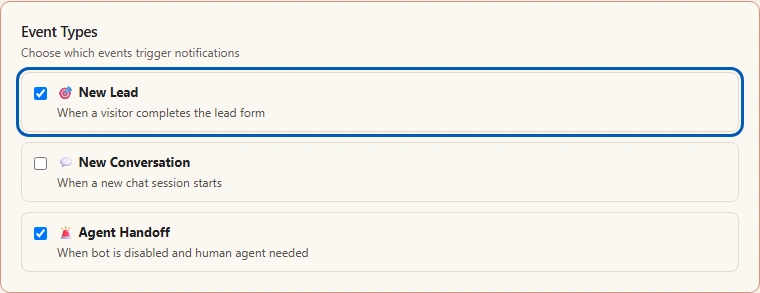
Select New Lead to notify your team when a visitor completes the lead form. Select any other events the team should receive. - Enable the channel you want. For email, enter the recipients, SMTP settings and sender. For SMS, enter the Twilio details and recipient numbers with country codes. For a webhook, enter the receiving URL and configure the optional signing secret on both sides.
- Save Settings. Use Test Email Configuration for email, then trigger the chosen event with a test conversation or completed lead.
Route a specific event
- Under Notification Workflows choose New rule. Name the rule, select its event and priority, and choose all or any conditions. Add an action and specify recipients or use channel defaults. Save workflow. Active rules take priority over the event’s basic switches.
- Open Delivery history and refresh. Read the event, channel, status and attempts. Sent records provider acceptance. If an alert was skipped, check the enabled channel, recipients and rule conditions before testing again.