 Pektrix
Set business hours and an away message
Publish your team’s weekly schedule and control when visitors receive an away reply.
On this page
Save the weekly schedule
- Open Manage → Business hours. In Weekly schedule mark the working days and enter the opening and closing time in UTC. Each day’s opening and closing times must fall on the same UTC day.
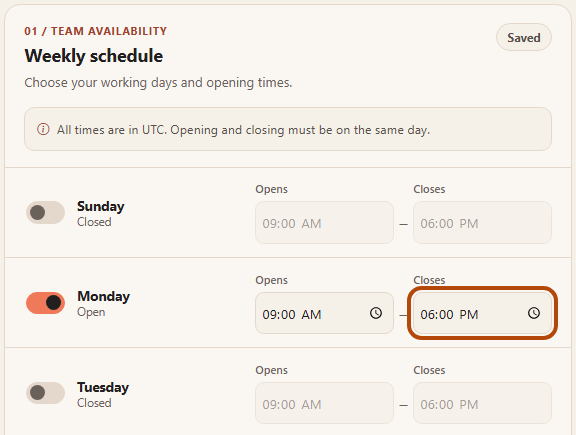
Enable each working day, convert opening and closing times to UTC, then use Save Schedule. - Choose Save Schedule. Use Refresh status in Saved availability to check whether the saved schedule currently reports Open or Closed.
Set the visitor reply
- Turn on Enable away message. Select Send only outside business hours if you want it limited to closed times. Include the next step in the English or Arabic message, such as when staff will reply.
- Review the preview and choose Save Away Message. Reopen the page and check Current away reply. The away reply and weekly schedule have separate save buttons.
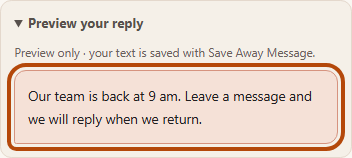
Read the draft as a visitor would. Check when the team will return and what the visitor should do, then choose Save Away Message.