 Pektrix
Build a Modern widget home screen and visitor form
Arrange home cards, preview them by page and language, collect requests, and restore an earlier published design.
On this page
Add a card with a specific purpose
- As the owner, open Configure widget → Edit Modern layout. In Brand & layout, set the heading, accent colour, and launcher background. Enable v2 installations for a published Modern widget.
- Open Home cards and choose Add card. Select the card type for the task, such as Start a conversation, Website link, Help article, or Visitor form. Use the published article's slug for a Help article card.
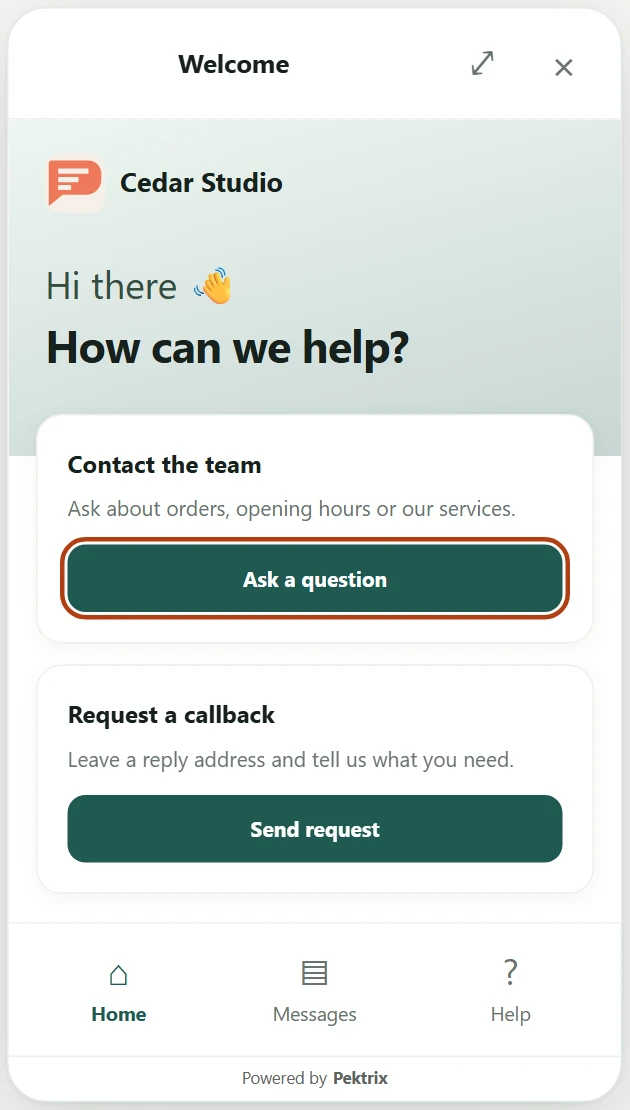
Choose Ask a question to open the chat. Your workspace may use a different label for this card. - For a page-specific card, select Show this card for a language or page. For example, use /pricing as the page path prefix for pricing pages. Use Live preview and Preview language & page to check where it appears. Published card content is public.
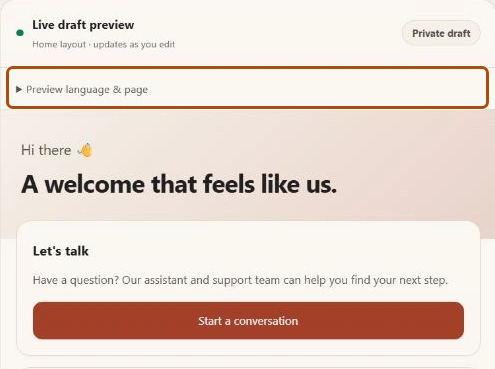
Expand Preview language & page to try the language and page path that should display your card.
Collect a visitor request
- Select Visitor form and add a field. Give it a unique key and a visitor-facing label. For a reply address, use the email input type. Set Required only for information you need to handle the request.
- For example, add a choice field named “Preferred contact method” with Email and Phone on separate lines. On a later phone-number field, use Show only for an earlier answer and select Phone from the earlier field. Use Require only for an earlier answer if the number is needed to complete that choice.
- Use Save draft while editing. When the form is ready, choose Save and publish, then Open published widget.
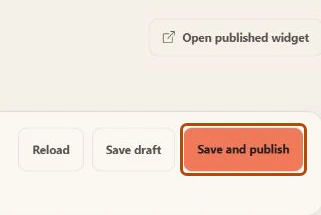
Choose Save and publish when the design is ready, then use Open published widget to check the visitor view. - Complete the published form with test details and submit it. Back in the workspace, open Requests and choose Refresh requests. Find the new submission, compare the values with what you entered, and open its conversation to follow up.
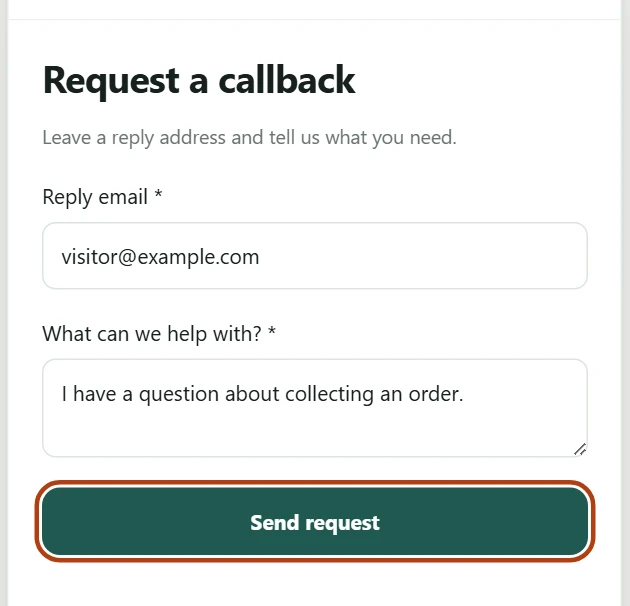
Complete the required fields and choose Send request. In the workspace, open Requests and check the submitted values.
Change tools or restore a published design
- In Chat tools, configure voice typing, approved preview domains, or the GIF library. Test the published settings in a visitor browser. Voice recognition depends on browser and language support.
- If a previous design needs to go live again, open Versions, select Restore on the desired revision, then review Restore and publish. Confirming replaces the draft and creates a new published revision. Refresh the visitor page to check it.