 Pektrix
Teach the assistant a frequently asked question
Give customers one approved answer to several ways of asking the same question.
On this page
Add an FAQ before knowledge review is enabled
- Open Knowledge → Questions & answers and choose Add answer. If your workspace already uses reviewed knowledge, follow the next section.
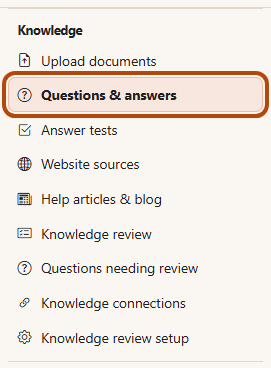
Open Questions & answers to find the FAQ library for the active bot. - Enter an Answer title you will recognize, such as “Collecting an order.” In the question field, enter “Can a friend collect my order?” Choose Add another wording for a variation such as “Can someone pick up my purchase?”
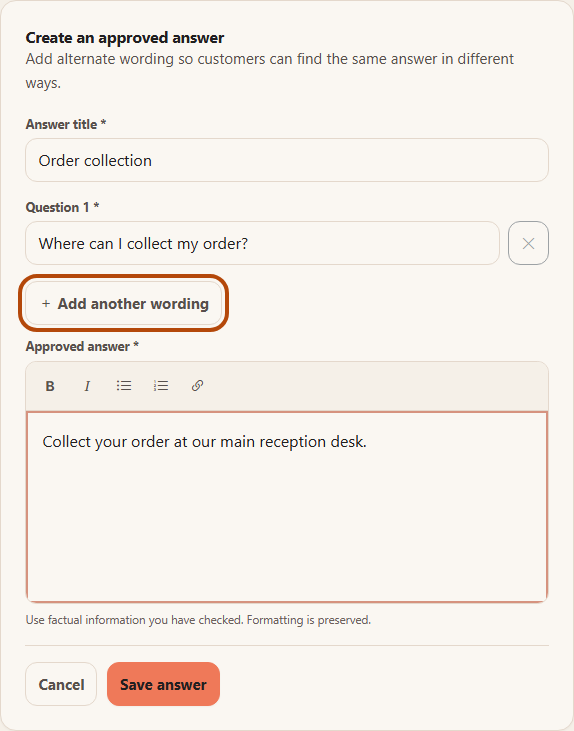
Choose Add another wording for a second way to ask the same question. Both wordings will share the approved reply. - Enter the policy you have checked in Approved answer, then choose Save answer. Keep questions together only when the same answer fits each one.
Add or update knowledge after review is enabled
- Open Knowledge → Knowledge review. For an existing FAQ, find the source and choose Propose changes. For a new question, choose New source. This creates a manual knowledge source with title and text fields.

Choose New source when the verified policy has no existing source to revise. - For a new source, use the question as its title and include the question and verified answer in the source text. Choose Save new draft revision, then Submit for review.
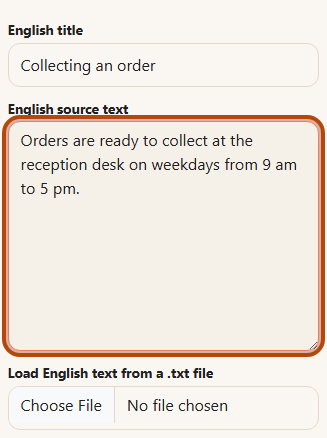
Put the verified details in the source text. In this example, the draft identifies both the reception desk and its collection hours. - The workspace owner compares the revision, chooses Approve this revision and confirms the decision. Check Allowed in answers before testing. The alternate-wording editor belongs to the original Questions & answers workflow.
Check what a visitor receives
- For a directly saved FAQ, select it in the answer library and check Approved answer and Questions this answers. For reviewed knowledge, check Recorded approved revision in Knowledge review.
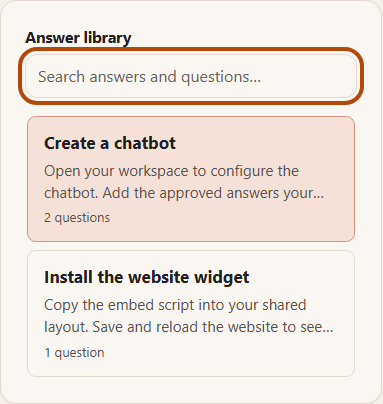
Search for a distinctive word in the question or answer and open the matching entry to check its wording. - Ask one of the saved questions in a fresh test chat. Try a variation, then a question with a different answer. In Answer tests, the workspace owner can save these examples and check their answer sources after future changes.
Compare the contact email in the reply with the address in your approved answer.