 Pektrix
Add and update products in the catalogue
Keep the name, price, image and website link that customers see accurate.
On this page
Add a product manually
- Open Commerce → Products and choose Add Product. Enter the product name and its known details, including SKU, category, brand, price and currency.
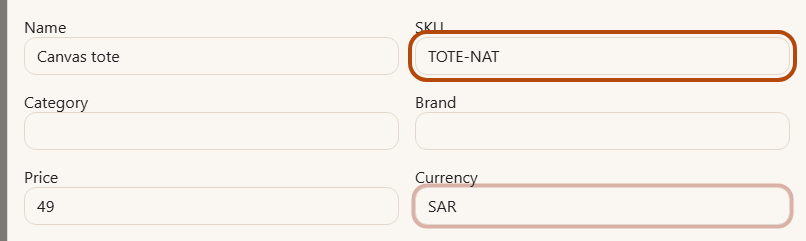
Give the item a recognizable name and enter its catalogue SKU. Check the currency alongside the price. - Add a useful description and the product’s public Product URL. Choose a product image if needed. Supported images are JPG, PNG, GIF or WebP up to 5 MB.
- Choose Save, find the row in Products, and compare the displayed name, price, stock information and image with the real item.
Check the customer’s next step
- Use Edit to correct details. If you want a customer to open a product page or use a button, open Commerce → Business actions and check Product assignments for that product.

Open Product assignments, find the item, and choose Manage to see which buttons it offers. - For a website catalogue, the product link can take customers to the store. For variants, carts and Shopify checkout inside a shopping conversation, configure Store integration.