 Pektrix
Receive signed leads and review webhook deliveries
Connect a published lead form to an external sender and inspect outgoing delivery attempts.
On this page
Accept signed submissions
- As the owner, open Integrations → Integration webhooks. Use Open widget editor to identify the published form card that should receive submissions.
- Under Incoming lead webhooks enter a connection name and Published form card ID. Select Create connection and copy the one-time signing secret to the sending server’s secret store.
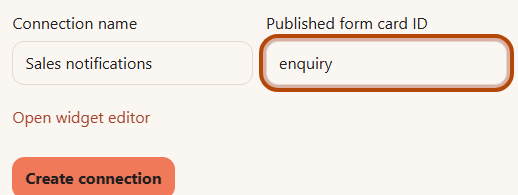
Copy the exact ID from the published widget form into Published form card ID before creating the connection. - Give the integration developer the displayed intake path and matching published form details. Ask them to submit a signed test event with a test conversation and the current published form revision, then verify its collection receipt.
Review a delivery
- Under Outgoing delivery use Only failed deliveries and check the event and attempts. Check the receiver’s records before queuing another delivery, since the receiver may already have handled the event.
- Choose Review retry and confirm only for the intended event. To retire an incoming connection, locate its name and form, choose Revoke connection and confirm.