 Pektrix
Install the chat widget on your website
Copy your bot's embed code, publish it in your site's HTML, and verify a conversation from the live page.
On this page
Copy the snippet for the correct business
- You need an active bot and permission to edit your website's HTML or its shared custom-code area. If another person manages the website, send them the snippet from this bot's preview page.
- Open the bot's workspace and select Preview website widget in the header. You can also use Configure widget → Preview and install.

Open the preview and leave the workspace tab available so you can compare the visitor’s message with the inbox. - Find Website widget HTML embed code. Copy the entire script exactly as shown. It contains this bot's public tenant identifier.
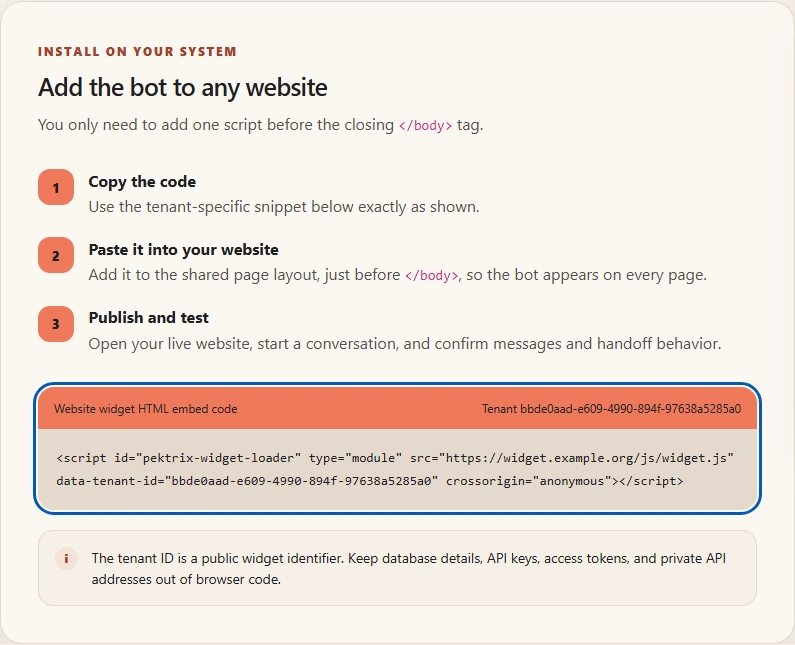
Copy the full script from your own bot’s preview page. The sample shows where to find it.
Place and verify the widget
- Paste the script once into the shared page layout immediately before the closing </body> tag. In a site builder, use its custom HTML or footer code area if it supports module scripts. Publish the website.
- Open a fresh page on the published site. Open the launcher, check the greeting, and send one of your approved questions. Repeat on a narrow mobile window.
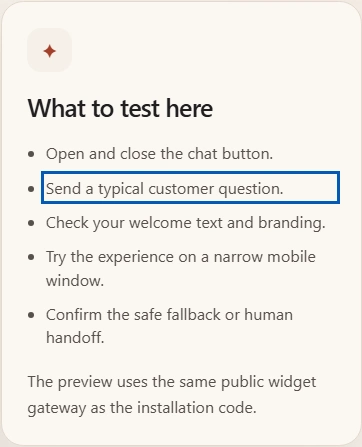
Try a question with a known answer. Check the greeting and repeat the test on a narrow screen. - Open Inbox in the same bot's workspace and find the new conversation. With the standard snippet installed, changing the active layout in Pektrix takes effect when visitors next load the page.
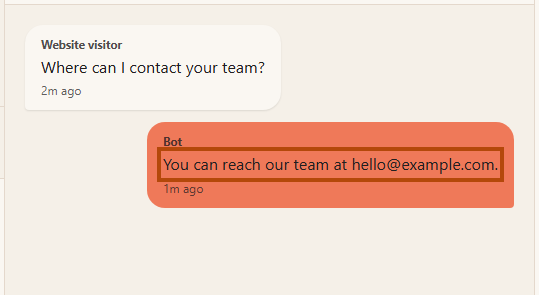
Match both messages with the widget. In your workspace, the bot’s reply should contain the contact details you saved in the FAQ.
If the launcher is missing or shows the wrong bot
- Check Preview website widget first. If the preview works, inspect the published page's HTML to confirm the website retained the complete script, including type and tenant identifier.
- Compare the published snippet with the current bot's installation code. Look for an older widget script left in another shared template or tag manager.
- If the browser reports a blocked script or origin, give the site administrator the affected page address and the browser's error message. If preview also fails, check that the bot is active and the selected layout is available.