 Pektrix
Brand your widget and switch between Classic and Modern
Change the bot's identity, edit shared controls, and choose which layout the website embed opens.
On this page
Edit the bot's identity and Classic appearance
- As the bot owner, open Manage → Bot details. In Business identity, set the bot name your team sees and the chat title visitors see.
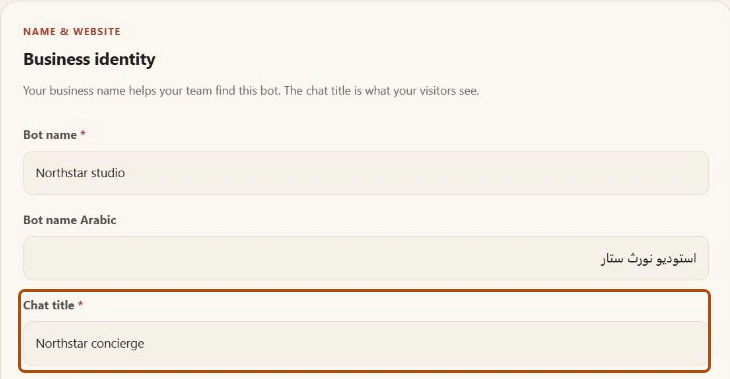
Enter the name visitors should see in Chat title. Your team uses Bot name to identify the bot. - In Brand logo, upload an image and adjust its size, corner roundness, and fit. In Chat appearance, set the welcome text, font, and colours for Classic.
- Open Launcher & tools to choose launcher images, hover text, voice controls, or quick questions. Top 5 Q&A uses the first question from active FAQs. Custom questions lets you write your own.
- Review the Classic widget preview and choose Save changes. Open Preview website widget for a messaging test.
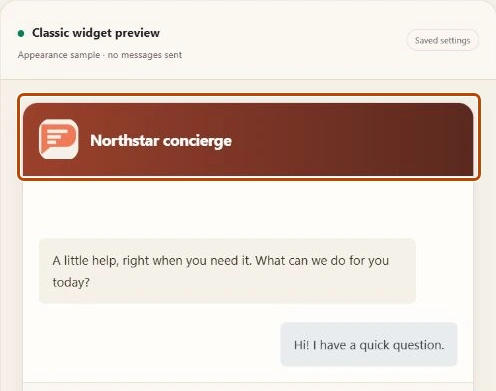
Compare the preview header and first message with the chat title and welcome text you entered.
Choose shared settings and activate a layout
- Open Workspace → Configure widget. Under File attachments, choose whether to show or hide the upload control in both layouts. Under Social links, add a public profile URL for each chosen platform. Choose Save changes.
- To use Modern, open Edit Modern layout, select Enable v2 installations, and choose Save and publish. Review the published widget before switching your site.
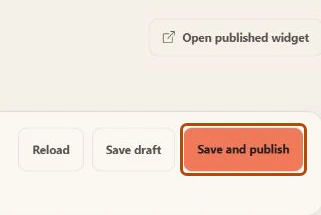
Choose Save and publish when the design is ready, then use Open published widget to check the visitor view. - Back in Configure widget, choose Activate Modern (V2) or Activate Classic (V1). Confirm the Active layout badge, then reload a page containing the standard embed. To turn off Modern installations later, activate Classic first.