 Pektrix
Find the right bot and workspace tools
Switch between businesses, find the inbox, and understand a locked or missing workspace tool.
On this page
Open the business you want to work with
- From Dashboard, choose a bot under Selected bot and select Open workspace. For the full list, select All bots. On Your bots, use Search bots, the status filter, or the sort control to find the business, then choose Open workspace on its card.
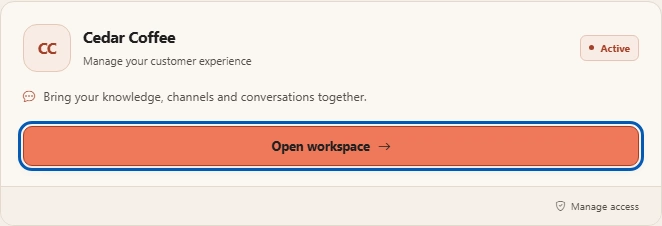
Match the name on the card to your business before opening its workspace. - Check the bot name and active or paused status at the top of the workspace sidebar. All bots takes you back to the full list. Use Switch bot when there are other active bots available.
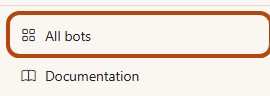
Choose All bots to return to the bot list. Check the business name on the card before opening a workspace. - On a small screen, choose Workspace menu. Overview shows shortcuts such as Open inbox, Manage answers, and Configure widget according to your access.
Check access when a tool is unavailable
- For a missing workspace, ask its owner to check your registered email and status in Team access. A paused bot can be reviewed from Your bots by someone with management access.
- For a locked feature, read the reason shown in the workspace. Some tools still let you inspect existing work when the plan limits new activity.
- Ask the paying account's owner to check Plans & billing for plan limits. Creating another bot also requires an available bot slot.