 Pektrix
Connect WhatsApp and test an incoming message
Link a WhatsApp Business account and verify that customer messages reach the workspace inbox.
On this page
Save your WhatsApp account
- Open Channels → WhatsApp. In Account details, enter Business account ID, Phone number ID and Access token from your Meta app. Copy the provider’s numeric ID into Phone number ID. Use Display phone number only if you want a recognizable label.
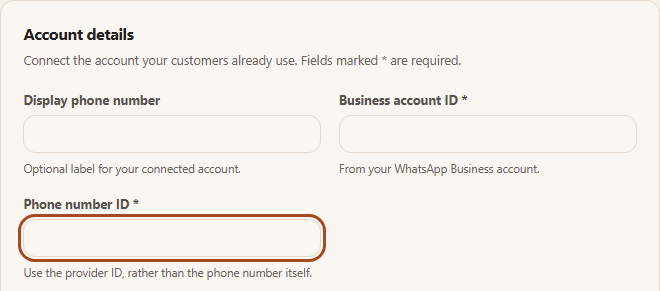
Copy the numeric phone number ID from Meta into the outlined field. The optional display number gives the account a recognizable label. - Under Reply behaviour enable WhatsApp and choose whether you want automatic replies. Select Save changes, then Test connection to check the saved credentials.
Receive a message
- Copy the Webhook callback address into your Meta app’s webhook configuration and use the verification token supplied by your workspace administrator. Ask the administrator to configure the public callback address if the page cannot display one.
- From a test customer account, message the connected business number. Use Open inbox to find the incoming message and check Last incoming event. For an outbound test, use an approved recipient and include their country code. Check the recipient’s device to verify arrival.