 Pektrix
Manage plans and subscriptions as a platform administrator
Review every workspace affected by a plan assignment, set a regional price, and verify a subscription payment.
On this page
Change a paying account's plan
- Platform administrators can open Subscriptions. Use Search workspaces and Select a workspace, then inspect the paying account and its current subscription.
- Read Workspaces affected by a change. A plan assignment applies to the paying account and can affect more than the selected workspace. If the screen says the billing provider manages this subscription, use that provider's billing process.
- Under Change subscription, choose a published plan, enter the access end in UTC when requested, and give the reason. Choose Review change. Check the plan and affected workspaces, then choose Apply subscription change. Reload the subscription to confirm the result.
Update the published catalog
- From Subscriptions, open Plans and pricing. Choose Edit on the plan, then review its names, enrollment mode, workspace and operator limits, monthly allowances, and workspace feature access.
- In Country prices, use the country and currency codes plus the monthly amount. Mark the intended price for publication and review any fallback price.
- Choose Save plan and check the saved revision. Changes to the catalog can affect workspace access. Previously confirmed charges retain their original amount and currency.
Manage how subscriptions are paid
- Open Payment methods from Subscriptions. Review Accept payments, the environment, and whether provider settings are available before choosing Save method. Test methods appear to platform administrators.
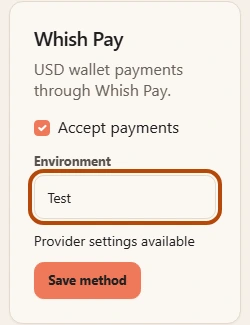
Check the environment before choosing Save method. This example enables Whish Pay for testing. - For a payment that needs checking, use Verify a payment. Enter the customer's checkout reference and any requested provider reference, then select Check with provider to see the result.