 Pektrix
Keep website and Notion sources up to date
Schedule imports, inspect which pages refreshed, and review changes before they reach customers.
On this page
Connect selected pages
- As the workspace owner, open Knowledge → Knowledge connections and choose Add connection. Name the connection and select Website or Notion.
- For Website, enter one root URL per line. For Notion, enter the page IDs, save the connection, then choose Connect to Notion and grant read access to the selected pages.
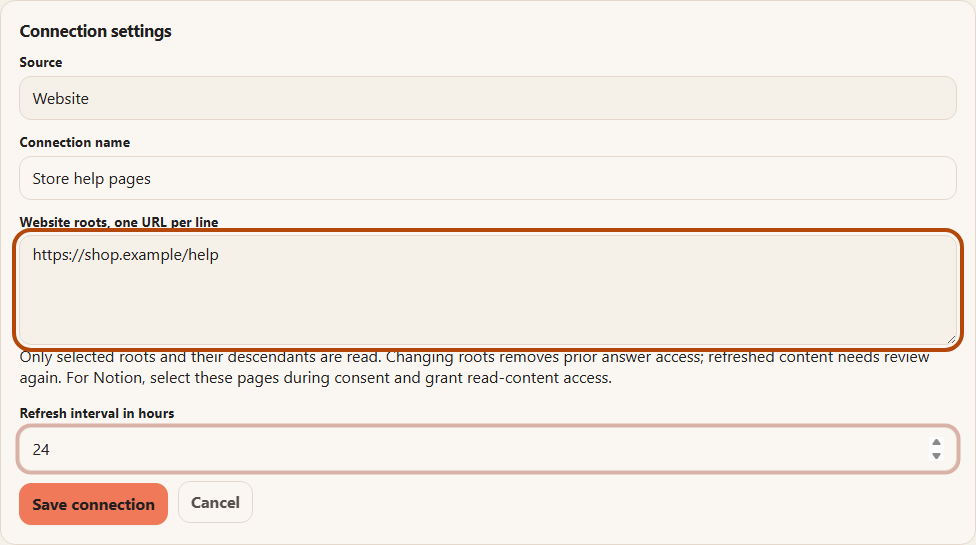
Enter one root URL per line. Choose a starting page whose descendants you want included. - Set Refresh interval in hours and choose Save connection. When ready, choose Queue refresh. Use Refresh saved status to see whether the run has finished.
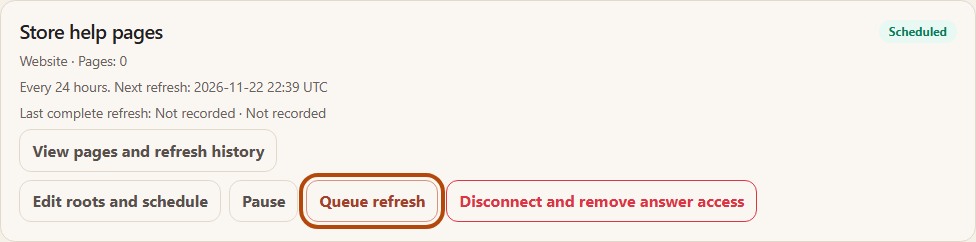
Choose Queue refresh to schedule the import. Check the last complete refresh to see whether it finished.
Review the import
- Choose View pages and refresh history. Check which pages completed, the last complete refresh and when answer access expires. Review any partial or unsupported page before relying on it.
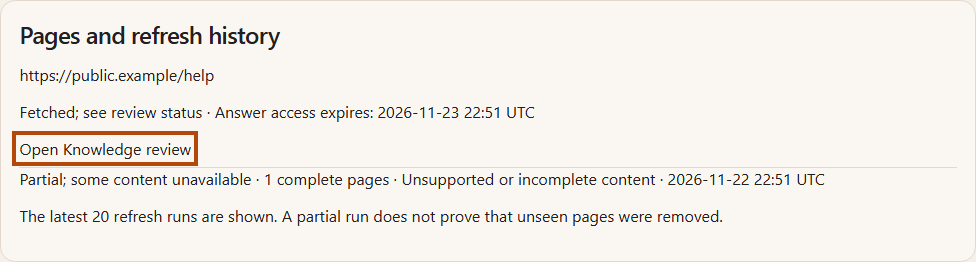
Read the page and run status. Open Knowledge review to inspect the imported source before approving it for answers. - Open Knowledge review, inspect the imported drafts and have the owner approve the revisions needed for answers. Changing the roots removes prior answer access and requires a fresh import and review.