 Pektrix
Publish a help article, news item, or blog post
Create content customers can read in widget v2 and choose whether the assistant can use it in answers.
On this page
Draft and preview the article
- As the workspace owner, open Knowledge → Help articles & blog and choose New article. In a workspace using reviewed knowledge, open Knowledge review to propose changes to an existing article and approve its revision.
- Choose Help guide, News, or Blog. Add a title, summary and content in the languages you support. Use Collection to group related articles and section headings to give readers a table of contents.
- Choose Preview to read the draft. Save draft keeps the current published article available while you edit.
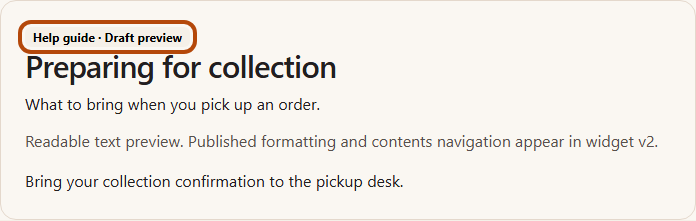
Read the title, summary and instructions together. Check the published article in widget v2 to see its formatted layout.
Choose how the article is used
- Set Use the published article for chatbot answers according to how you want it used. Saving applies the answer permission immediately to the published version.
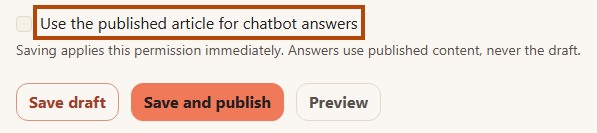
Select this box to let the assistant use the published article. Saving applies this permission to the published version immediately. - Choose Save and publish when ready. In All articles, verify Published and the answer setting. Check the published article in widget v2, including its collection and headings.
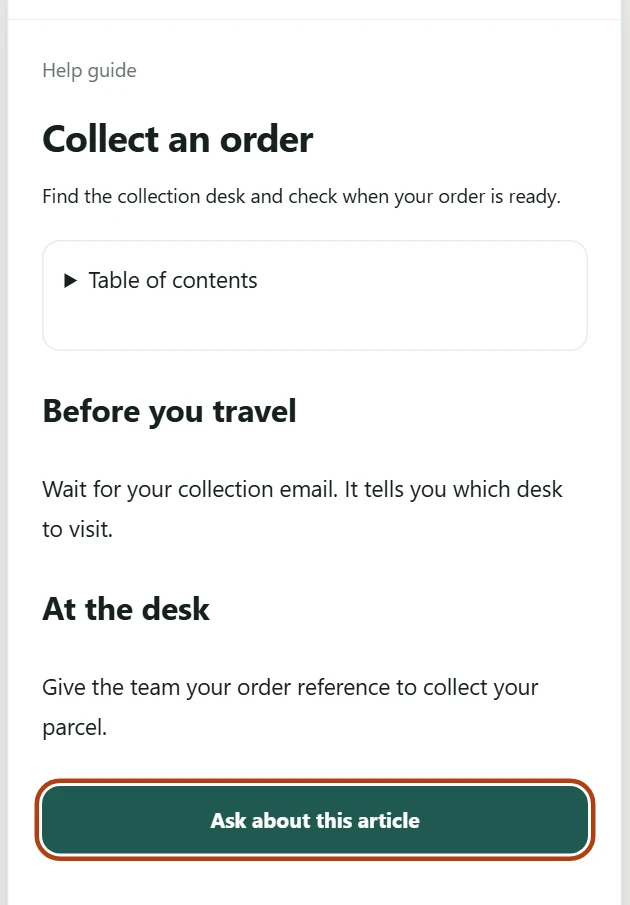
Check the headings in the published article. Choose Ask about this article to open a chat with the article title in the message box.