 Pektrix
Prepare and track a broadcast campaign
Send an approved WhatsApp template or prepare a Telegram campaign for selected recipients.
On this page
Queue an approved WhatsApp campaign
- As the workspace owner, open Audience → Broadcast campaigns. In WhatsApp campaigns, refresh provider status. To request a new text-body template, enter its name, language, category, text and one example per numbered variable. Save local draft and submit for provider review.
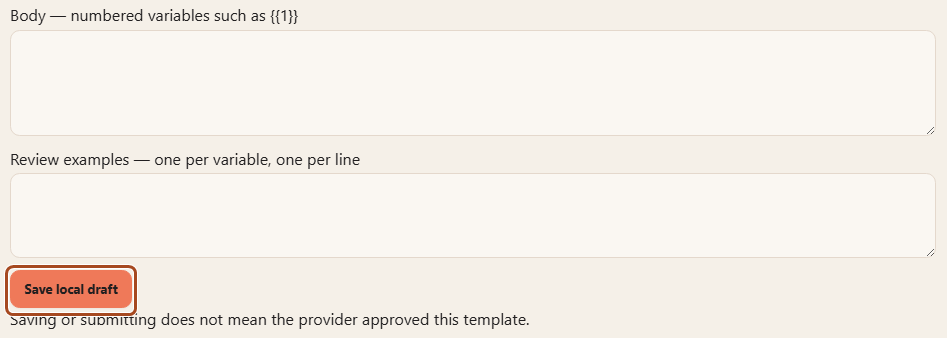
Enter one example per numbered variable, in the same order as the body. Save local draft keeps the template available for provider submission. - Look up each intended recipient’s consent by phone number. Record explicit opt-in with its evidence when the person has granted permission. Choose an approved template and enter the variable values in order, one per line.
- Enter up to 500 recipient numbers, one per line, and check the UTC schedule. Select Review campaign and inspect the recipients and text. Use Confirm and queue when ready. Open Recipient details in Campaign records to distinguish queued, delivered, skipped and other recorded outcomes.
Prepare a Telegram broadcast
- Expand Earlier and Telegram campaigns and select New Telegram campaign, or New campaign and choose Telegram. Enter the name, message and optional scheduled time. Choose Save draft.
- Open the draft and add one recipient external ID per line. Review the saved recipients. Choose Process now only when you intend to process the campaign, then inspect recipient status and recorded failures.