 Pektrix
Manage platform roles, people, and navigation
Assign a platform role to a user, map permissions to roles, and control which menu entries appear.
On this page
Assign a role and its permissions
- As a platform administrator with access to People, find the account by its email. Select Assign Role, check the role description under Current Selection, then select Save Role. To change profile details instead, use Edit Profile.
- Open Roles to edit an existing role or use New role. Use Permissions to define a capability with a display name and a unique permission key if one is needed.
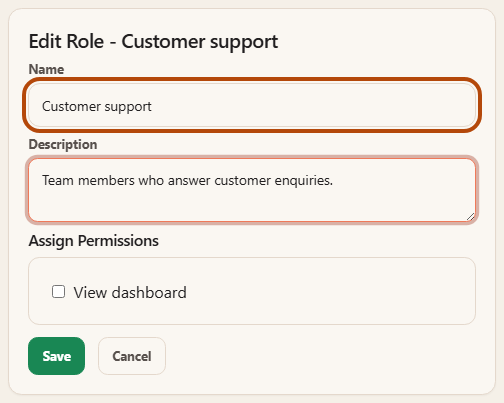
Give the role a name and description that explain who should receive it. Check the permissions before saving. - In Role permissions, select the role, change the assigned permissions, review the changes, and choose Save role permissions. Ask an affected user to sign in again before checking their menu.
Make an existing destination discoverable
- In Navigation, select an existing menu item or Add menu. Set its label, unique key, and visibility. Enter an existing internal page route beginning with / for a link, or leave the route empty for a group. Choose Save changes.
- In Menu access, select that menu item and link the permissions that should expose it. Review the draft and choose Save access rules. When a visible menu has permission links, one matching permission is sufficient to show it.
- Check the result using the intended role. Workspace membership, the workspace plan, and each page's access checks still apply when the user opens a destination.