 Pektrix
Register, verify your email, and recover access
Use the email your team will add to its workspace. Recover a password or request a fresh verification link.
On this page
Register with your work email
- Open the Pektrix sign-in screen and select Register. Enter your email address, choose a password that meets the requirements shown, and enter it again under Confirm Password.
- Select Create Account. When Check your email appears, open the verification message sent to that address. After Email Verified appears, sign in using the Login tab.
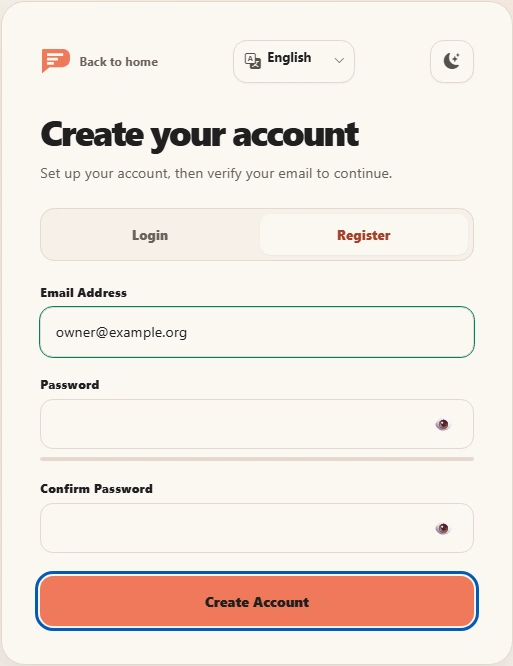
Use the email address you want to verify. Enter the password in both fields before choosing Create Account. - If your team already uses Pektrix, give its workspace owner the exact email you registered. The owner can add that account in Team access.
Recover access
- If the verification email is missing, check the address and your spam folder. If the link expired, return to Login and enter your registered email and password. On the verification notice choose Resend verification email, then open the newest link.
- For a forgotten password, select Forgot password? on the Login tab. Enter your registered email and choose Send Reset Link. Open the reset email, fill in New Password and Confirm Password, then choose Reset Password. Use Go to Login to sign in again.
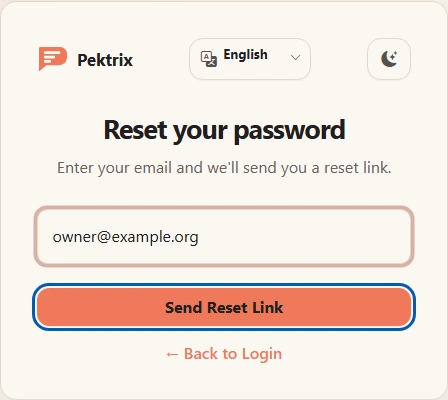
Enter the address you registered, select Send Reset Link, then check that inbox for the reset email. - If the sign-in screen reports too many attempts, wait before retrying. If a temporary password change is required, enter the temporary password and confirm your new one on the change screen.